
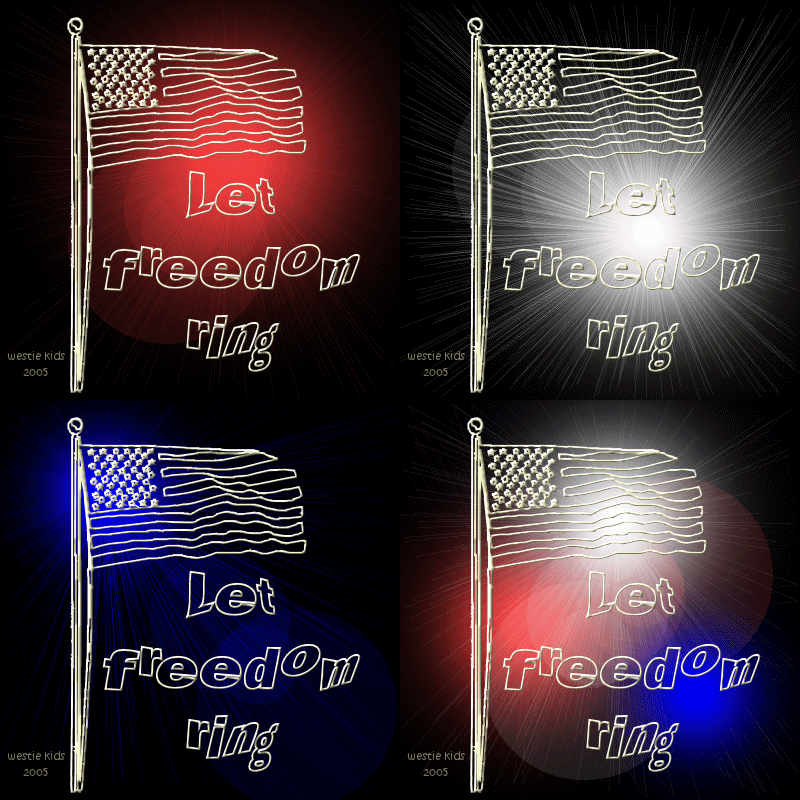
This tutorial was written & all screenshots done in PSP9. Please do not offer any of my materials for download anywhere, only offer a text link to my tutorial, do not send the webpage through emails. You may save an offline copy for your own use, of course, and the results are yours. I do not wish my tutorials to be translated. Thank you for your courtesy...God bless, Diana
Supplies:
1) File/New Image: 400 x 400, Transparent.
You may, of course, choose colors/settings of your own. I played around with the settings to be sure none of the sunburst effect would be chopped off on the edges - as I think that looks unsightly.
2) Add a New Raster Layer, floodfill Raster 2 with #000000.
3) Add a New Raster Layer, floodfill Raster 3 with #000000.
4) Add a New Raster Layer, floodfill Raster 4 with #000000.
5) Open the Americanic.ttf dingbat font to make it available in PSP.
Objects/Align/Center in Canvas (or if using another dingbat, move it where you'd like).
6) Effects/3D/Inner Bevel: Metallic:
7) Now open the Marola text font, click on your text tool and type your message/name. I used Vector text again, size 48, stroke width 2, Color #FFFFC0, and again, no fill color. Once you have your text positioned, Convert to Raster.
8) Add your watermark or signature on a new raster layer.
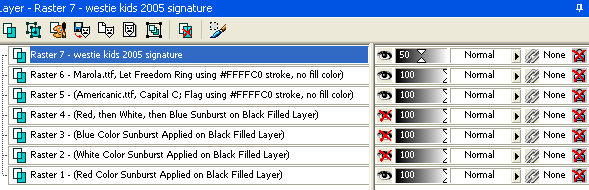
9) You should have 7 layers:
10) Click on the top layer to activate it. Then click on eye to hide (x out) Raster 2, Raster 3, and Raster 4.
Edit/Copy Merged: Shortcut Keys: CTRL+SHIFT+C.
11) Go back into regular PSP.
12) Go back into regular PSP.
13) Go back into regular PSP.
14) You now have the 4 Sunburst frames in Animation Shop, each having your watermark, text, and flag.
Use your scrollbar again to highlight Frame 2; right click on Frame 2, choose Frame Properties then change the time to 35 and click OK.
Highlight Frame 3; right click and change the time to 35.
Highlight Frame 4; right click and change the time to 90.
15) Click on View/Animation to see your tag. If you'd like to change the timing, just go back to each of your frames to change as we did in Step 14.
16) Go to Edit/Select All.
~~~~~~~~~~
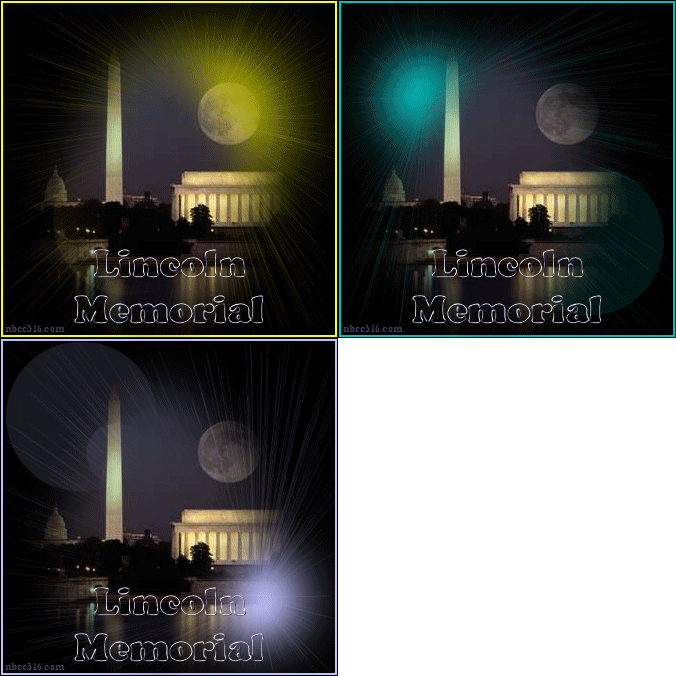
Below: 3 animation frames, different timing and a feathered image overlaying the sunburst effects. I hope you have enjoyed this tutorial. God bless, Diana
DISCLAIMER: In accordance with Title 17 U.S.C. Section 107, any copyrighted work on this site is distributed under fair use without profit or payment to those who have expressed a prior interest in receiving the included information for non-profit research and educational or criticism purposes only. http://www.law.cornell.edu/uscode/17/107.shtml
Created 07/04/05
Floodfill Raster 1 with #000000, Black.
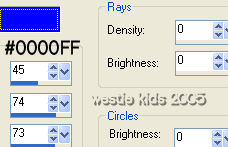
Effects/Illumination Effects/Sunburst with these settings:
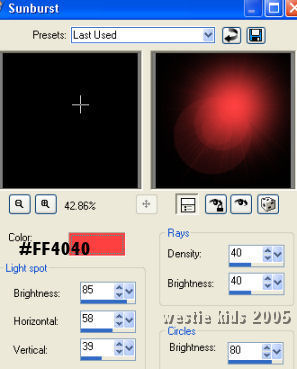
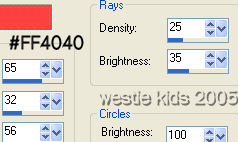
Apply Sunburst again, using these settings:
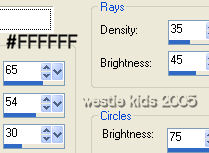
Apply Sunburst again, using these settings:
Apply Sunburst THREE TIMES on this layer, using Settings below:
Click on your text tool, find Americanic.
Change your Foreground (stroke) to #FFFFC0 and close the Background (we want
the "fireworks" to show through our text, so we don't want to use a fill color).
I used the Capital C for the flag with these settings:

In your Layer Palette, right click on Vector 1 and choose Convert to Raster.
Apply the same Inner Bevel as we used in Step 6.
Raster 7 - your watermark on transparent layer
Raster 6 - text message on transparent layer
Raster 5 - dingbat flag, etc. on transparent layer
Raster 4 - Sunburst applied 3 times on black filled layer
Raster 3 - Sunburst blue applied on black filled layer
Raster 2 - Sunburst white applied on black filled layer
Raster 1 - Sunburst red applied on black filled layer
We will be working on the layers from the bottom up.
File/Jasc Software Products/Launch Animation Shop.
Edit/Paste/As New Animation: Shortcut Keys: CTRL+V
Hide Raster 1
UNhide Raster 2
Edit/Copy Merged and go back to Animation Shop
Edit/Paste/After Current Frame: Shortcut Keys: SHIFT+CTRL+L
Hide Raster 1 & Raster 2
UNhide Raster 3
Edit/Copy Merged and go back to AS
Edit/Paste/After Current Frame
Hide Raster 1, Raster 2 & Raster 3
UNhide Raster 4
Edit/Copy Merged and go back to AS
Edit/Paste/After Current Frame
At the bottom of the image in AS is a scrollbar. Drag it to the left until you see your first frame which will be labeled F:1 D:10 (Frame 1, Display Time 10). Place your mouse on the image itself and right click to bring up a window then click on Frame Properties and change the display time to 45 & click OK.
File/Save As/ and save as .gif which will bring up the optimation windows. You can click the Next button 3 times, then the last window will be your Optimization Results. Before clicking on the FINISH button on this window, look at the top line and see how large of a file size you've created. My sample at the top of the page is 244KB which may be too large for your needs. We can resize the animation to save on KB's.
Go to Animation/Resize Animation.
On the Resize window that pops up, change Percentage of Original to 75%; Resize Type to Bicubic Resample; make sure Maintain Aspect Ratio of 1.0000 to 1 is checked.
Go to File/Save As and step thru the optimization windows again. My sample at 75% would be 160KB.
Revised 07/11/06
Westie Kids/Diana Dorsey 2001-2007
(all rights reserved)
Thank You and God bless........Diana